
How to Convert a Scanned PDF to Excel Using OCR
Learn how scanned PDF conversion works with OCR, how to prepare your document, extract multi-page tables accurately into XLSX or CSV, and avoid common formatting mistakes.
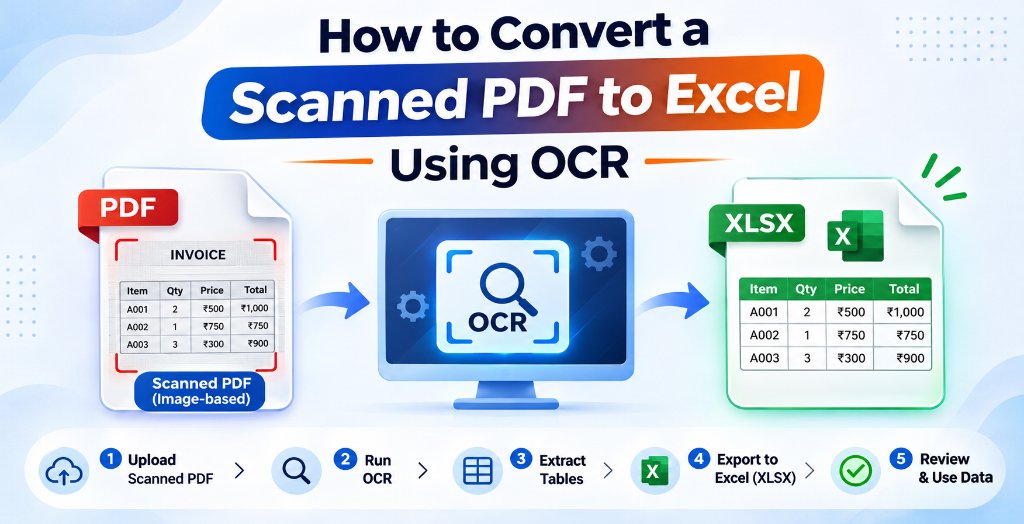
All tools referenced in this guide are 100% free, require no registration, and run locally inside your browser with zero file uploads for maximum security and confidentiality.
Working with tables inside a PDF can become frustrating when you need to edit, calculate, sort, or analyze the information in Microsoft Excel. The problem becomes even bigger when the PDF is scanned. Unlike a regular digital PDF, a scanned document usually contains images of pages rather than selectable text. This means you cannot simply copy a table and paste it into a spreadsheet.
The good news is that OCR (Optical Character Recognition) technology can help convert scanned PDF content into editable data. With the right PDF conversion workflow, you can recognize text, extract tables, and organize information into an Excel workbook without manually typing every entry.
In this guide, you will learn how scanned PDF conversion works, how to prepare your document, how to extract tables, and how to check the final spreadsheet.
What Is a Scanned PDF?
A scanned PDF is a document created by scanning physical paper or saving photographs of pages as a PDF. It may look exactly like a normal document, but its contents are often stored as page images.
For example, you might receive a scanned bank statement, printed invoice, business report, inventory sheet, or academic record. You can read the information on the screen, but your computer may not recognize individual words or numbers as editable text.
A simple way to identify a scanned PDF is to open it and try selecting a word with your mouse. If you cannot highlight individual words, the document may require OCR before its information can be extracted.
What Is OCR and How Does It Convert PDF Data?
OCR stands for Optical Character Recognition. It is a technology that analyzes text appearing inside images and attempts to recognize individual characters, words, and numbers.
When OCR processes a scanned PDF, it generally follows these stages:
- Page analysis: The software examines the scanned page and identifies areas containing text.
- Image preparation: The page may be corrected for rotation, contrast, noise, or alignment.
- Text recognition: OCR identifies letters, numbers, and other characters.
- Layout analysis: The software examines the positions of text to help identify paragraphs, rows, columns, and tables.
- Data extraction: Recognized content is organized into a format that can be used in another application.
- Export: The extracted information can be saved in a supported spreadsheet format, such as XLSX or CSV.
OCR and table extraction are related but different processes. Recognizing the words is only part of the task. The software must also understand where each value belongs in the original table.
How to Convert a Scanned PDF to Excel
Follow these steps to turn information inside a scanned PDF into an editable spreadsheet.
Step 1: Select Your Scanned PDF
Choose the PDF containing the table or information you want to extract. It could be an invoice, financial statement, product list, attendance record, or business report.
Before processing, make sure the document is readable and that the pages are not unnecessarily cropped.
Step 2: Upload the PDF to an OCR PDF Tool
Open a suitable OCR-enabled PDF conversion tool—such as the Tools Khazana PDF to Excel Converter or Advanced OCR PDF workspace—and select your scanned document. The tool should support image-based PDF pages rather than only digitally generated PDFs.
If the document contains several pages, check whether the tool can process the required pages together.
Step 3: Run Text Recognition
Start the OCR process. The software will analyze the page images and recognize the visible characters.
Selecting the correct document language can improve recognition. If the document contains multiple languages, use a tool that supports the relevant language combination.
Step 4: Extract the Table Structure
Once the text has been recognized, the next task is organizing it into spreadsheet cells.
A table extraction system should identify column positions, row boundaries, headers, and individual values. More advanced methods can also use geometric positioning and visible table borders to understand complex layouts.
This step is especially important for invoices and financial statements, where placing a number in the wrong column can change the meaning of the entire record.
Step 5: Export the Result to Excel
After extraction, export the recognized information into an Excel-compatible format. An XLSX workbook is useful when you want to edit cells, apply formulas, create filters, or perform calculations.
CSV can be useful for simpler datasets that mainly contain rows and columns.
Step 6: Review the Spreadsheet
Never assume that an exported spreadsheet is automatically perfect. Compare the important information with the original scanned PDF.
Check totals, dates, decimal points, negative numbers, account identifiers, column alignment, and missing rows before using the data.
Common Problems When Converting Scanned PDFs to Excel
Even a good OCR system can face difficulties when the original document has poor image quality or a complicated layout.
1. Blurry scanned pages
Low-resolution images can make similar characters difficult to distinguish. For example, the numbers 3 and 8 may be confused in unclear scans. Use a sharper scan whenever possible.
2. Incorrect row and column alignment
A system may recognize every value correctly but place some values in the wrong spreadsheet cells. Table structure detection and manual verification help reduce this problem.
3. Missing decimal points
A small decimal point can be difficult to recognize. This is particularly important when extracting prices, tax amounts, balances, and financial figures.
4. Merged cells and complex headers
Some documents contain multi-level headings, merged cells, or tables without visible borders. These layouts require more advanced table detection.
5. Multiple pages
A table may continue across several PDF pages. Check whether repeated headers are handled correctly and whether the exported rows remain in the correct sequence.
Tips to Improve PDF to Excel Conversion Accuracy
You can improve the results by preparing your document before running OCR:
- Use clear scans with readable text.
- Keep pages straight and avoid unnecessary rotation.
- Select the correct OCR language.
- Avoid shadows, glare, and dark backgrounds.
- Check that important table borders and column spaces are visible.
- Process a sample page before converting a large document.
- Compare extracted totals with the original document.
- Keep the original PDF for reference.
For financial records, invoices, and business reports, always verify critical values before using the spreadsheet for accounting or reporting.
Why Convert Scanned PDFs into Excel?
Excel makes extracted information easier to work with. Instead of manually reading every row from a scanned document, you can organize the recognized data into an editable workbook.
Some common use cases include:
- Business owners: Extract product lists, invoices, and sales records.
- Accountants: Organize financial statements and expense details.
- Students: Convert research tables and printed academic records.
- Inventory managers: Transfer stock information into spreadsheets.
- Office teams: Reduce repetitive data entry from paper documents.
- Researchers: Organize numerical information from printed reports.
The biggest benefit is not simply changing the file format. It is making previously difficult-to-use information available for editing, searching, sorting, and analysis.
Frequently Asked Questions
Can I convert an image-only PDF to Excel?
Yes. An image-only PDF can be processed using OCR to recognize its text. A table extraction system can then organize the recognized information into spreadsheet rows and columns.
Do I need OCR for every PDF to Excel conversion?
No. Digitally generated PDFs may already contain selectable text, so OCR may not be necessary. Scanned or image-only PDFs generally need OCR before their contents can be extracted.
Can OCR extract tables from scanned invoices?
Yes. OCR can recognize text and numbers in scanned invoices. Table detection is also needed to organize descriptions, quantities, prices, taxes, and totals into the correct columns. Always review the exported values.
Can I convert multiple PDF pages into one Excel workbook?
This depends on the conversion tool. Some tools support multiple-page extraction and can combine related tables into a workbook. Check the output for repeated headers, missing rows, and changes in column order.
Is scanned PDF to Excel conversion always accurate?
No conversion method can guarantee perfect results for every scanned document. Image quality, handwriting, unusual fonts, complex tables, and incorrect language settings can affect recognition. Important data should always be checked against the original PDF.
Which output format should I choose: XLSX or CSV?
Choose XLSX when you need an editable workbook with multiple sheets, formatting, and spreadsheet features. Choose CSV when you only need simple tabular data that can be opened by spreadsheet applications.
Final Thoughts
Converting a scanned PDF to Excel does not have to involve hours of manual typing. OCR helps recognize text inside scanned pages, while table extraction technology organizes that information into usable spreadsheet cells.
For the best results, start with a clear document, use an OCR-enabled converter, select the correct language, and verify important values after exporting. This workflow can make invoices, reports, statements, and other scanned records easier to manage.
Choose our free PDF to Excel Converter for spreadsheet extraction and the Advanced OCR PDF Tool when your document contains image-based text. Together, these technologies make document data more accessible and useful.
Ready to use the PDF to Excel Converter?
Get started immediately with zero installations, no credit card, and instant results directly inside your web browser.