
How to Password Protect a PDF: A Complete Guide to Encryption and Document Security
Learn how PDF password protection and AES encryption work, the difference between Document Open and Permissions passwords, step-by-step setup, and key security limitations.
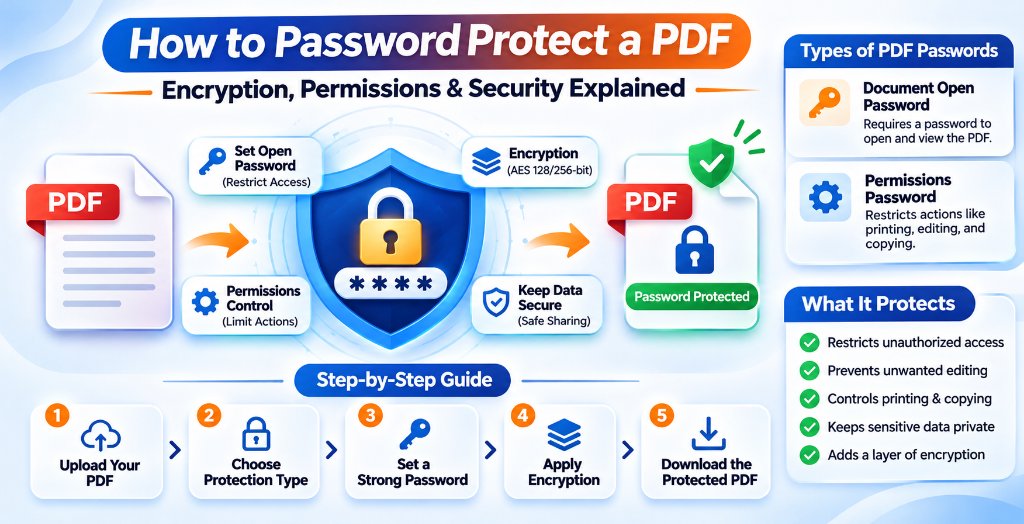
All tools referenced in this guide are 100% free, require no registration, and run locally inside your browser with zero file uploads for maximum security and confidentiality.
PDF files are widely used to share invoices, business proposals, contracts, financial statements, certificates, and personal documents. Their consistent formatting makes them convenient, but sharing a PDF does not automatically make its contents private. Anyone who receives an unprotected document may be able to open, read, copy, or modify its contents.
If your PDF contains confidential information, adding password protection can help control access. However, PDF security involves more than simply creating a password. Understanding encryption, document permissions, and safe file-sharing practices is important when protecting sensitive information.
This guide explains how PDF password protection works, the different types of passwords, how to secure a document, and what limitations you should understand before sharing it.
What Does It Mean to Password Protect a PDF?
Password protecting a PDF means applying a security mechanism that requires a password for a specific type of access or operation.
Depending on the security settings, a PDF can require a password before someone can open and read it. Alternatively, it can allow viewing while restricting actions such as printing, editing, or copying content in compatible PDF applications.
Password protection is particularly useful for:
- Business contracts and agreements
- Confidential invoices and financial reports
- Employee records and internal documents
- Personal identification documents
- Client proposals and project files
- Sensitive educational or research documents
The level of protection depends on the encryption method, password strength, and permissions selected when securing the document.
Understanding the Two Types of PDF Passwords
PDF security commonly supports two different password types. They serve different purposes and should not be confused.
1. Document Open Password
A Document Open Password, sometimes called a user password, is required before someone can view the protected PDF.
For example, suppose you need to send a confidential financial report to a client. You can apply an open password so that the recipient must enter the correct password before viewing the document.
Without the correct password, the encrypted document cannot normally be opened through a compatible PDF reader.
2. Permissions Password
A Permissions Password, also known as an owner password, controls certain actions that users can perform on a PDF.
Depending on the software and security settings, restrictions may include:
- Printing the document
- Editing text or images
- Copying text and images
- Adding comments
- Modifying document pages
A permissions password does not necessarily prevent someone from opening the document. Its purpose is to control selected operations.
Important: Some PDF readers or third-party applications may not enforce every permission restriction consistently. These settings should not be treated as an absolute guarantee against copying or unauthorized redistribution.
How Does PDF Encryption Work?
Encryption is the technology that helps protect the actual contents of a document.
When a PDF is encrypted, its protected content is transformed into data that cannot normally be understood without the correct decryption key. A password is commonly used to help derive or unlock that key.
Modern PDF security implementations can support Advanced Encryption Standard (AES), including 128-bit and 256-bit configurations, depending on the software and PDF compatibility settings.
Here is a simplified explanation:
- You select a PDF document.
- You choose the required security settings.
- You create a password.
- The software applies the selected encryption method.
- The protected PDF is saved.
- An authorized recipient enters the correct password to access the document.
Encryption strength is important, but password quality also matters. A weak or predictable password can undermine otherwise strong encryption.
How to Password Protect a PDF File
You can use compatible desktop software or an online PDF password protection tool such as the Tools Khazana PDF Password Adder. The exact interface may differ, but the general process is similar.
Step 1: Select Your PDF Document
Choose the PDF you want to secure. Before applying protection, confirm that it is the correct version and that all necessary information is included.
Keep an original backup in a secure location.
Step 2: Open a PDF Protection Tool
Open a trusted PDF security application or a browser-based tool that supports password encryption.
Select the option to protect or encrypt a PDF. If you are using an online service, review its privacy and file-handling policies before uploading confidential documents.
Step 3: Choose the Protection Type
Decide whether you want to:
- Require a password to open the document
- Restrict printing, editing, or copying
- Apply both open-password and permissions-based protection
Choose settings according to the document’s purpose rather than restricting every action unnecessarily.
Step 4: Create a Strong Password
Use a long, unique password that is difficult to guess. Avoid personal information, common words, birthdays, phone numbers, or predictable combinations.
A password manager can help generate and securely store strong passwords.
Step 5: Apply Encryption and Save
Confirm your password and select the available encryption settings. Save the protected PDF as a new file.
Do not overwrite your only original copy until you have tested the protected version.
Step 6: Test the Protected PDF
Close the document and open it again. Check whether the password prompt appears and whether the selected permissions behave as expected.
If possible, test the file in a compatible PDF reader before sending it to someone else.
Best Practices for Creating Secure PDF Passwords
A password is only useful when it is difficult for unauthorized people to guess.
Follow these recommendations:
- Use long passwords rather than short, predictable combinations.
- Avoid reusing passwords from your email, banking, or other accounts.
- Use a unique password for important confidential documents.
- Store passwords in a reputable password manager.
- Share passwords through a separate communication channel.
- Avoid placing the password in the same email as the protected PDF.
- Verify the recipient before sharing confidential information.
For example, you can send a protected document through email and communicate its password through a verified phone call or another secure channel.
What PDF Password Protection Cannot Guarantee
Password protection is useful, but it does not solve every document security problem.
- It cannot prevent every screenshot: Someone who can view a document may still capture its contents using screenshots, photographs, or another device.
- It cannot guarantee that permissions will be enforced everywhere: Different PDF applications may handle printing, copying, and editing restrictions differently.
- It cannot protect a password that has been shared insecurely: If an unauthorized person obtains the password, they may be able to access the document.
- It cannot replace redaction: Hiding sensitive information visually is not the same as permanently removing it. If confidential details must not be disclosed, use a proper redaction process before sharing.
- It cannot recover every forgotten password: Depending on the encryption and software, a forgotten password may not be recoverable. Keep passwords stored securely.
For highly confidential documents, consider additional controls such as encrypted storage, secure file-sharing platforms, access management, and recipient verification.
Common PDF Password Protection Mistakes
Even when users apply passwords, small mistakes can create security risks.
- Using weak passwords: Common passwords are easier to guess.
- Sharing passwords in the same message: This reduces the benefit of separating the document and its password.
- Forgetting to test the output: A file should be checked after protection is applied.
- Losing the password: Keep a secure record so authorized users can access the document later.
- Assuming printing restrictions prevent screenshots: Permission settings do not eliminate every way of capturing information.
- Uploading confidential files to unknown websites: Always review how an online service handles uploaded documents.
Frequently Asked Questions
Can I password protect a PDF online?
Yes. Compatible online PDF tools allow users to upload a document, set a password, apply protection, and download the secured file. Review the provider’s privacy and retention policies before uploading sensitive information.
What is the difference between a PDF open password and a permissions password?
An open password is required to view the document. A permissions password controls selected operations such as printing, editing, and copying in compatible applications.
Does password protection encrypt a PDF?
Password protection can apply encryption to a PDF. The actual protection depends on the selected security method and the software used to create the document.
Can someone edit a password-protected PDF?
It depends on the protection settings. A PDF with an open password may still allow editing after it is opened. Permissions settings can restrict certain editing operations, but their enforcement varies across PDF readers.
What happens if I forget my PDF password?
You may lose access to the encrypted document if you forget its open password. Keep a secure backup of important passwords and retain an authorized original copy when appropriate. If you already know the password and want to create an unlocked copy for trusted archival, you can use a PDF Password Remover.
Is a password-protected PDF completely secure?
No file-sharing method can guarantee complete security. Strong encryption and unique passwords help protect access, but users should also consider secure sharing, recipient verification, storage security, and document redaction where necessary.
Final Thoughts
Password protecting a PDF is a practical way to improve document security when sharing business, financial, personal, or confidential information. Understanding the difference between open passwords and permissions passwords helps you select the right protection for each situation.
For better security, use strong unique passwords, choose appropriate encryption settings, test the protected document, and share passwords separately from the files themselves.
A well-protected PDF is not just a locked document. It is part of a responsible document-sharing process that combines encryption, access control, and safe handling practices. You can secure PDFs directly in your browser using our PDF Password Adder.
Ready to use the PDF Password Adder?
Get started immediately with zero installations, no credit card, and instant results directly inside your web browser.