
How to Merge PDF Files: Combine Multiple PDFs into One Document
Step-by-step guide to merging multiple PDF files into one organized document while preserving page order, quality, and readability.
All tools referenced in this guide are 100% free, require no registration, and run locally inside your browser with zero file uploads for maximum security and confidentiality.
Managing multiple PDF documents can become difficult when information is spread across separate files. You might have invoices saved individually, scanned certificates in different documents, or business reports divided into several PDFs. Opening and sharing each file separately can take extra time and make document management less convenient.
A practical solution is to merge PDF files into one document. PDF merging allows you to combine multiple PDF documents into a single file while arranging their pages in a useful order.
Whether you are organizing office documents, preparing academic assignments, or combining business records, understanding how PDF merging works can help you manage files more efficiently.
In this guide, you will learn how to merge PDF files, prepare documents before combining them, maintain the correct page order, and avoid common mistakes.
What Does It Mean to Merge PDF Files?
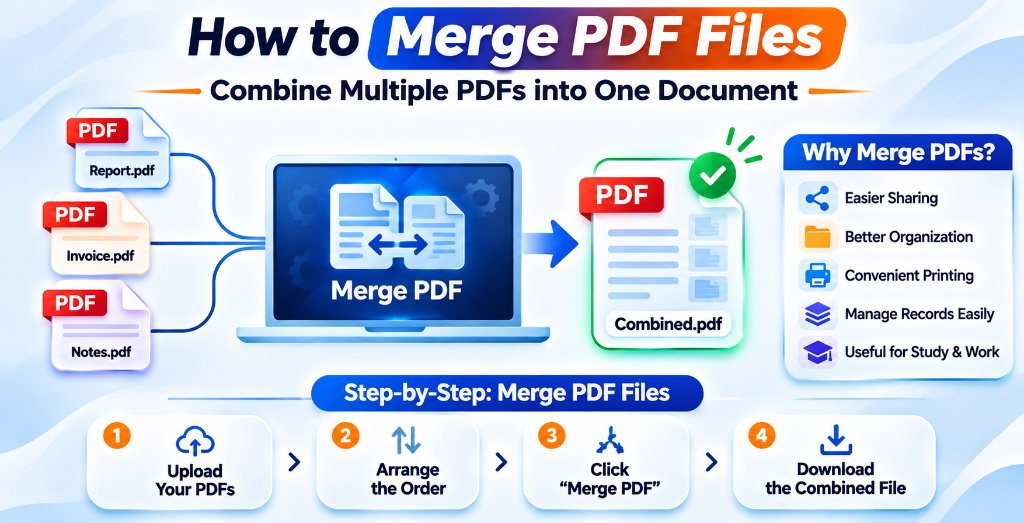
Merging PDF files means combining two or more separate PDF documents into one continuous PDF document.
For example, imagine you have three separate files:
Invoice-January.pdfInvoice-February.pdfInvoice-March.pdf
Instead of sharing all three documents individually, you can merge them into one file named Quarterly-Invoices.pdf.
The resulting document contains the pages from the selected PDFs in the order you choose.
PDF merging is useful for combining reports, invoices, contracts, receipts, presentations, research papers, and scanned documents. It also makes it easier to store and share related information together.
Why Should You Combine Multiple PDF Files?
There are several practical reasons to merge PDF documents.
- Easier document sharing: Sending one organized PDF is often more convenient than attaching several separate files to an email or message.
- Better document organization: Related pages and documents can be stored together. This makes it easier to locate information when reviewing a project or maintaining records.
- Convenient printing: When documents are combined, you can print the resulting file as one organized document instead of opening and printing every PDF separately.
- Improved record management: Businesses can combine invoices, receipts, statements, and reports into organized files for easier reference.
- Simplified academic work: Students and researchers can combine assignment sections, notes, reference pages, and supporting documents into a single PDF.
How to Merge PDF Files Online
You can combine multiple PDFs using a compatible online PDF merger such as Tools Khazana’s Merge PDF Online tool. The general process is simple and does not require manually copying pages between documents.
Step 1: Select Your PDF Files
First, identify the PDF documents you want to combine. Check that you have selected the correct files and that they contain the pages you need.
For example, if you are preparing a business report, collect the introduction, financial summary, charts, and supporting documents before starting.
Step 2: Open a PDF Merger Tool
Open a trusted PDF merging tool that supports combining multiple documents. Choose the option to merge or combine PDF files.
If the documents contain confidential business or personal information, review the service’s privacy and file-handling policies before uploading them.
Step 3: Upload Multiple PDF Documents
Select the PDF files from your device. Some tools allow multiple files to be selected together, while others let you add documents one at a time.
Check the tool’s file-size and page-count limits before processing large documents.
Step 4: Arrange the Page Order
This is one of the most important steps.
Arrange the uploaded documents in the order you want them to appear in the final PDF. For example, a business report might follow this sequence:
- Cover page
- Introduction
- Main report
- Financial information
- Supporting documents
A correct sequence makes the final document easier to read and understand.
Step 5: Merge the PDF Files
Start the merging process. The software combines the selected PDF pages into a single document.
Depending on the file sizes, number of pages, and processing method, the operation may take a few seconds or longer.
Step 6: Download and Verify the Final PDF
Download the merged document and open it in a PDF reader.
Check the page sequence, page count, orientation, text, images, and important information. Make sure no pages are missing or duplicated.
Does Merging PDF Files Reduce Quality?
In many cases, merging PDF documents does not require reducing the quality of their existing page content.
A PDF merger can combine the document structures and pages without intentionally compressing every image or changing the original content. However, the exact result depends on how the software processes the files.
Some tools may optimize, compress, or modify document elements during processing. If document quality is important, consider these precautions:
- Choose a merger that preserves original page content.
- Avoid unnecessary compression during merging.
- Check images and graphics after processing.
- Review fonts, page dimensions, and orientation.
- Compare important pages with the original documents.
For scanned documents, pay particular attention to image clarity and readability.
Common Problems When Merging PDF Documents
Although PDF merging is straightforward, certain issues can occur:
- Incorrect page order: Documents may appear in an unexpected sequence if the uploaded files are not arranged correctly.
- Large file size: Combining several large PDFs can create a much larger output file. Using a PDF Compressor afterward can help reduce file size, though you should always check the visual quality before sharing.
- Different page sizes: Some PDFs may use A4, Letter, or custom dimensions. The merged document can contain different page sizes unless the software provides page-size adjustment.
- Password-protected PDFs: Some protected documents may require authorization or password entry before they can be processed. If needed, unlock authorized files first with a PDF Password Remover.
- Corrupted documents: Damaged or incomplete PDF files may fail to merge correctly. Try opening and validating the original files first.
Tips for Better PDF Merging Results
Follow these practices to create a clean and organized final document:
- Rename files clearly before uploading them.
- Arrange documents in the correct sequence.
- Remove unnecessary pages before merging using tools such as Delete PDF Pages.
- Check page orientation and dimensions.
- Keep a backup of the original PDF files.
- Avoid uploading sensitive documents to untrusted services.
- Verify the final document before sharing it.
These simple steps can reduce mistakes and make the merged PDF easier to use.
Frequently Asked Questions
Can I merge multiple PDF files into one?
Yes. A compatible PDF merger can combine multiple PDF documents into one file. The number of supported documents may depend on the tool’s limits.
Can I merge PDF files without losing quality?
Usually, yes. Merging does not necessarily require image compression or quality reduction. However, some tools may optimize document content, so always review the final output.
Can I change the order of PDFs before merging?
Many PDF merging tools allow users to rearrange uploaded documents before processing. This helps control the sequence of pages in the final file.
Can I merge scanned PDF documents?
Yes. Scanned PDFs can generally be combined like other PDF documents because their pages are stored as document content. However, the resulting pages may remain image-based rather than searchable text unless processed with OCR PDF.
Can I merge password-protected PDFs?
This depends on the document’s security settings and the capabilities of the merging software. You may need the appropriate password or authorization before processing a protected document.
Is merging PDF files the same as compressing a PDF?
No. Merging combines multiple PDF documents into one file, while compression attempts to reduce a PDF’s file size. These are separate operations and can be used together when needed.
Final Thoughts
Merging PDF files is a simple but valuable way to organize documents, simplify sharing, and bring related information into one place. It is useful for students, office professionals, business owners, and anyone who regularly works with digital documents.
For the best results, select the correct files, arrange their order carefully, use a reliable PDF merger, and verify the final document before sharing it.
Combining documents does not need to be complicated. With the right Merge PDF workflow, multiple files can become one organized document that is easier to manage and distribute.
Ready to use the Merge PDF Online?
Get started immediately with zero installations, no credit card, and instant results directly inside your web browser.